# Your first website form
> Build a form, route it, publish it, embed it, and watch the first lead arrive.
> Source: https://www.eventsiq.io/docs/website-form
A website form is one you build inside EventsIQ and embed on a site you control. This page walks the
whole path in order: create it as a draft, build it, decide where its leads go, go live, put it on a
page, and check that a real lead arrived.
Budget about fifteen minutes the first time.
:::note{title="Before you start"}
You do not need a destination set up to build a form and go live: leads are saved in Logs either
way. But nothing is sent on until a routing is picked, so if you want the full loop working today,
set up a [destination](https://www.eventsiq.io/docs/destinations) first.
:::
## Step 1: Start a new form
Go to **Forms**. This page is your inventory: every website form, Facebook form, TikTok form, Google lead form and
inbound endpoint you have, with its status, what it routes to, and how many leads it has taken.
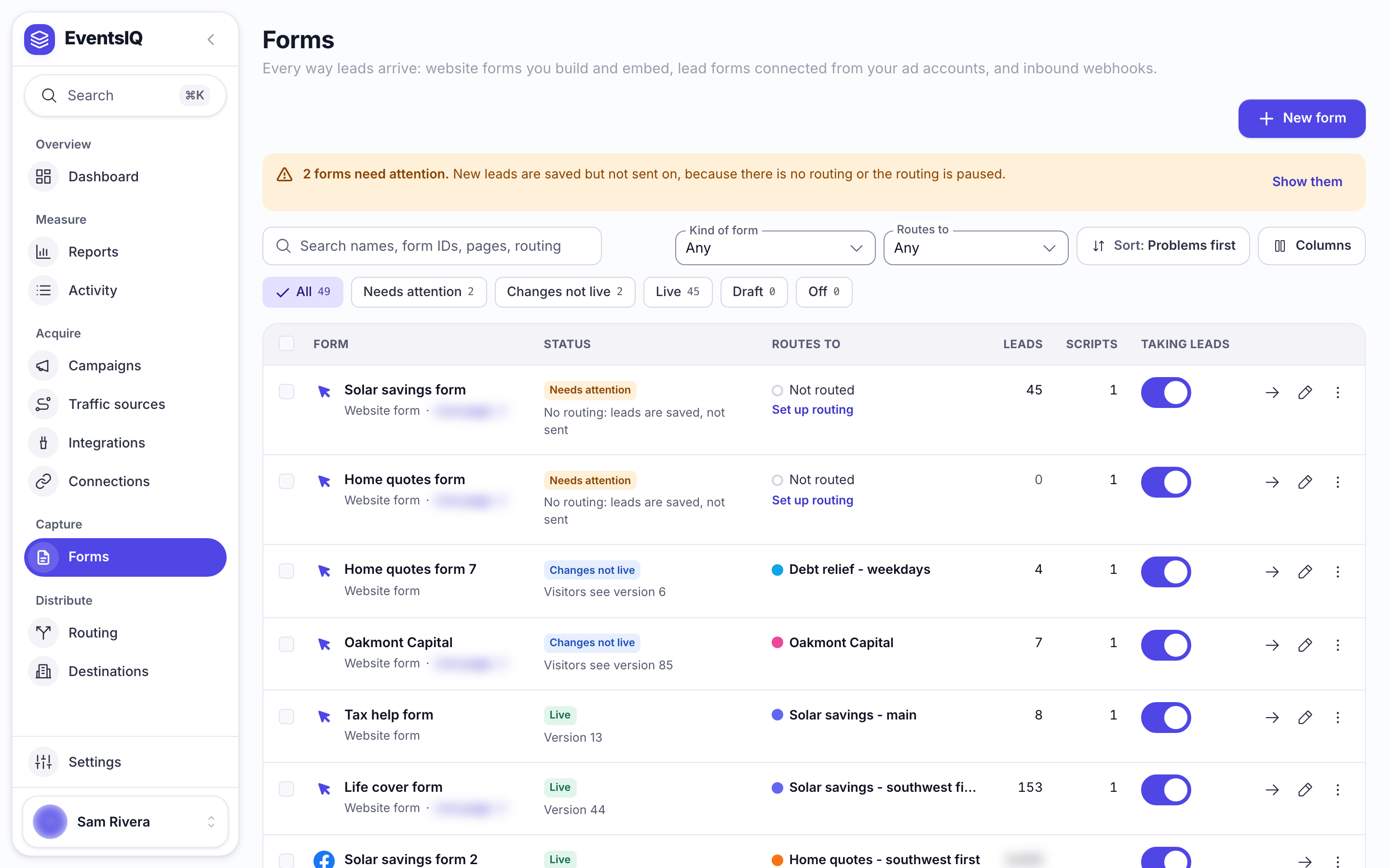
Press **New form**. The first screen, **Basics and starting point**, asks three things.
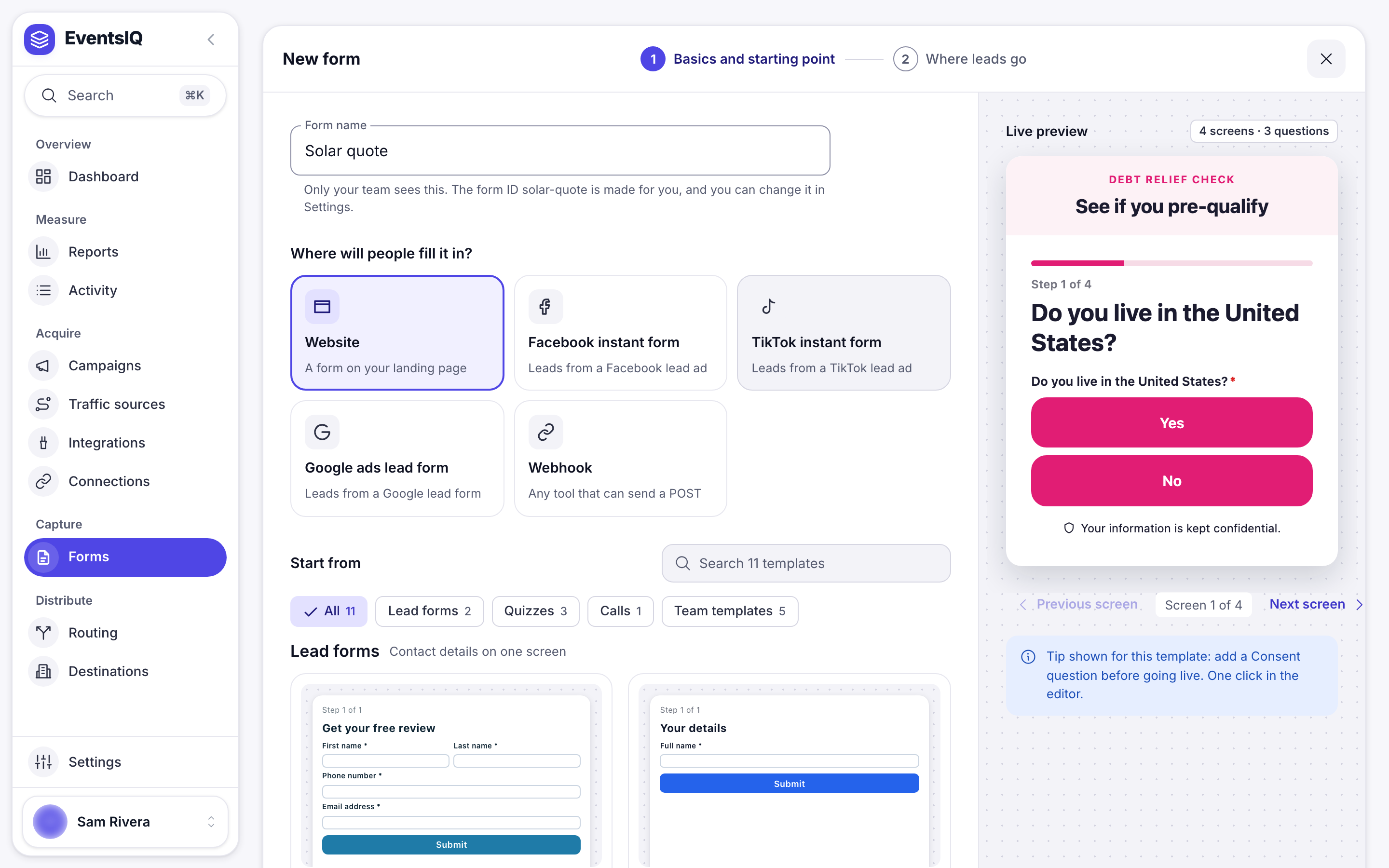
**Form name** is for you. It appears in the Forms list and nowhere a visitor can see.
**Where will people fill it in?** Choose **Website**.
**Start from** is a gallery of real, complete forms you can edit down: lead forms, quizzes, call
forms and your team's own templates. Search it, or narrow it with the chips at the top, and the
preview beside it shows the form as visitors will see it. **Simple lead form** comes first, marked
**Recommended**. Starting from a template and deleting what you do not need is usually faster than
starting blank.
There is no Form ID box. EventsIQ makes one from the name, and you can change it in Settings until
the form first goes live.
## Step 2: Decide where the leads go
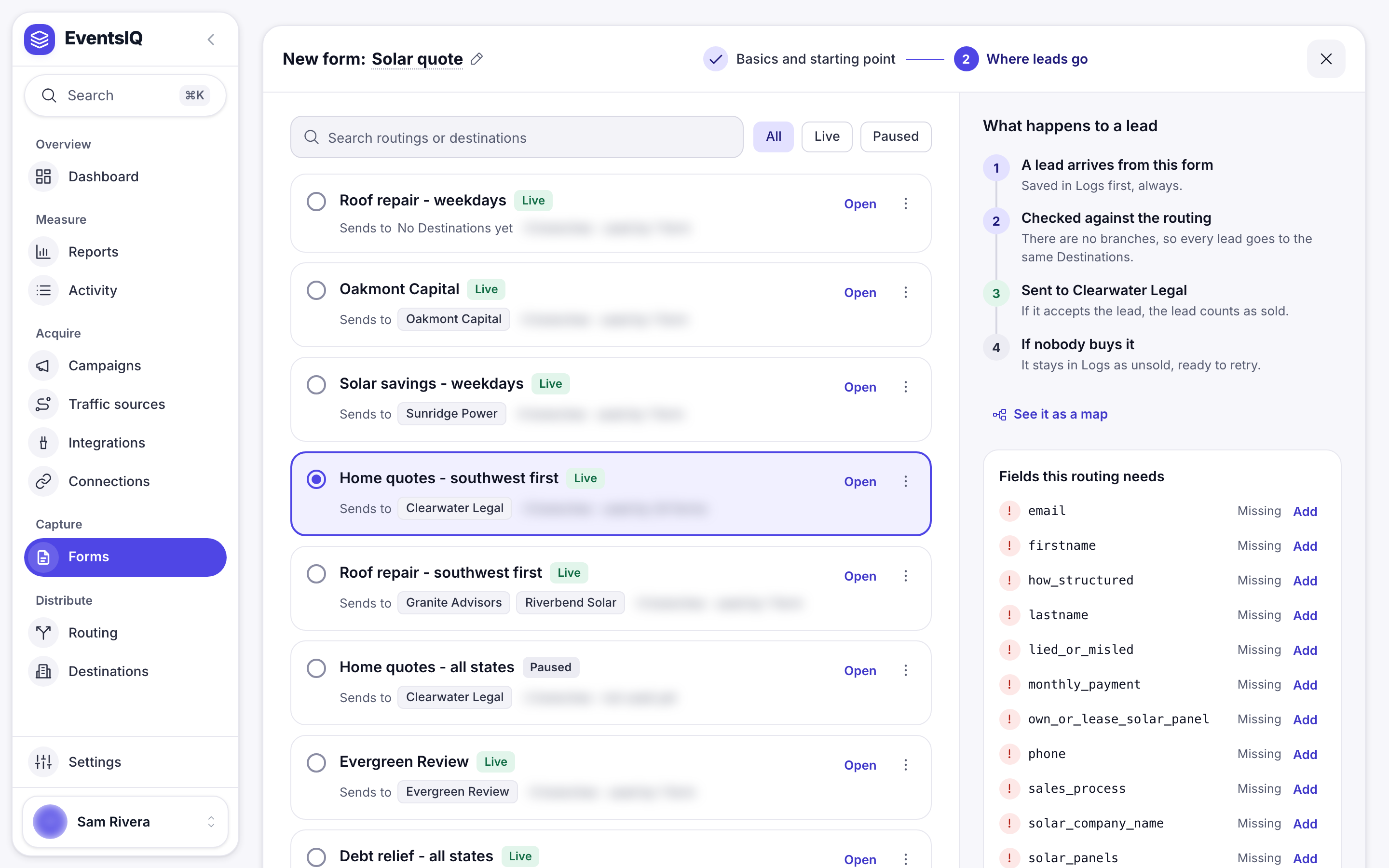
Pick a routing and this form's leads run through it the moment they arrive. The panel beside it shows
**What happens to a lead**, and **See it as a map** draws the same thing as a picture.
Under that, **Fields this routing needs** compares the template with what the routing's destinations
and presets read. Anything the template does not ask for is marked **Missing**, and one click adds
the question to your form, so a destination does not start turning leads away later.
No routing yet? **New routing** and **Start from a copy** open the routing builder over this screen.
Close it and you come back here with the new routing picked.
Press **Decide later** and the form still works: leads are captured, cleaned up and saved in Logs,
they are simply never sent to a destination. You can pick a routing later in the editor's
**Settings**, under **Where leads go**.
Press **Create form with this routing** (or **Decide later**) and the form is made as a **Draft**.
A draft shows nothing on any page until you press **Go live**, so you can build it in peace. The last
screen says so, and gives you **Open the editor**.
## Step 3: Build the form
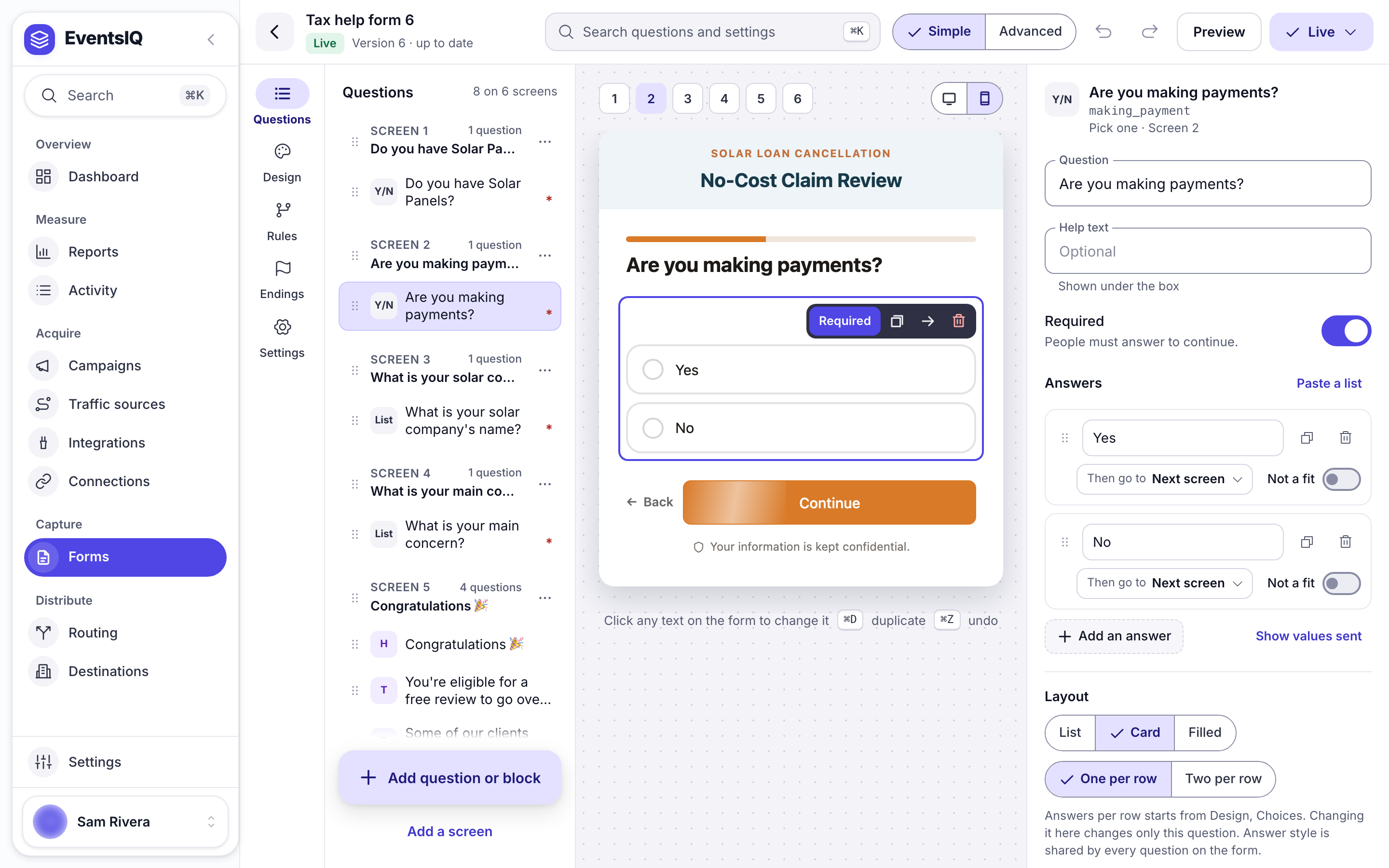
The editor opens in **Simple**. Along the top are the form's name and status, **Search questions
and settings** (⌘K), the **Simple** and **Advanced** switch, undo and redo, **Preview**, and **Go
live**. Once the form is live that button becomes **Live**, or **Update live form** when you have
changes, and its menu holds **Put it on your page**, **Versions** and **Take offline**. Down the left
are the pages: **Questions**, **Design**, **Rules**, **Endings** and **Settings**.
The status always says where the form stands:
- **Draft**: only your team sees it. Visitors see nothing.
- **Live**: visitors see exactly what is in the editor.
- **Live** with **2 changes not live yet**: you have edited a live form. Visitors keep seeing the
live copy until you press **Update live form**.
**Simple and Advanced edit the same form.** Switch at any time from the top bar: what you had
selected stays selected, and the editor remembers your choice next time. Simple shows the everyday
settings. **Advanced** is the full builder: **Layers** in place of Questions, with the whole form as
a tree you can drag, every style setting, raw HTML blocks, and a **Developer** page with custom CSS,
screen keys and page values. Most forms never need it. [Forms](https://www.eventsiq.io/docs/forms) lists every part of
both.
### Questions and screens
The **Questions** page lists your form screen by screen, with the questions on each one. The form
itself sits beside the list, exactly as it will look on your website. Click anything on it to select
it, or double-click a question, heading or button to change its words in place. Enter, Esc or a
click anywhere else saves, and Undo puts the old words back.
**Add question or block**, or the **/** key, opens a searchable list in groups: **Contact details**, **Questions**, **Legal and
trust**, **Tracking** and **Layout**. Contact details arrive ready to use, with a real label, marked
required, and already named the way destinations expect. **Add a screen** adds a question screen, or
a loading screen that shows a few lines in turn and then moves on by itself.
Select a question and its settings open on the right:
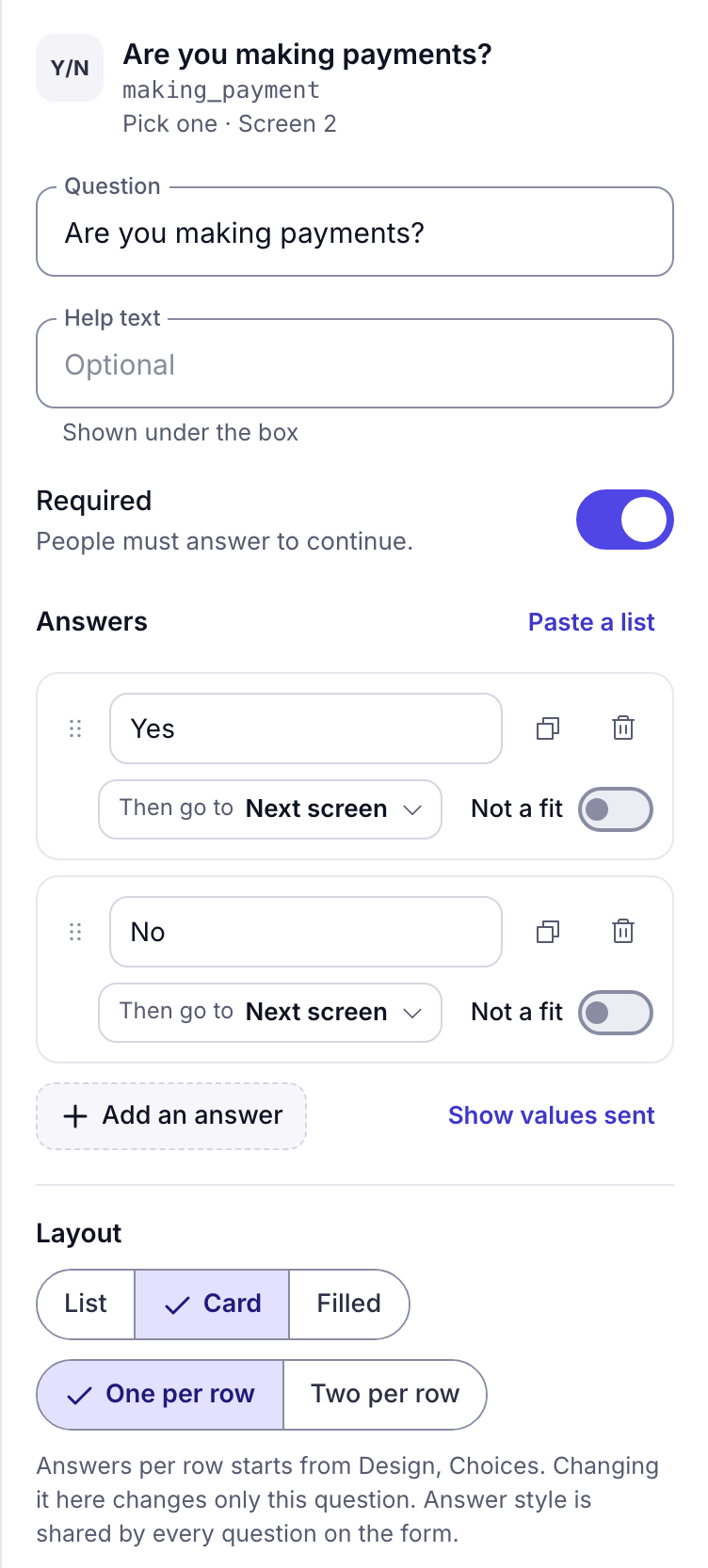
- **Question**, **Help text** and **Required** are the everyday settings.
- **Answers**, on a choice question, lists each answer with **Then go to**, which sends people to
another screen, and **Not a fit**, which ends the form there.
- **Destinations receive it as** is the standard field this answer fills. Set the phone question
to `phone` and every preset, destination template and event that reads `{{phone}}` finds it. See
[Fields](https://www.eventsiq.io/docs/fields) for the full list.
- The rest, such as **More options** and **Look of this question**, sits in sections further
down. Open them when you need them.
:::tip{title="Website forms map themselves"}
Facebook and webhook sources need their fields matched by hand on a separate screen. A website form
does not: because you wrote the questions, each one already says what destinations receive it as,
and the matching is worked out every time the draft saves. Set **Destinations receive it as** here
and there is nothing else to do.
:::
### Rules
A form with several screens is a funnel, and rules decide where each visitor goes next. The
**Rules** page lists every rule as a plain sentence, grouped by the screen it runs on, such as
_When State is not one of TX, FL, AZ, end with Not a fit_. Press **Add a rule here** beside a
screen, or **Add a rule** at the top, to make one.
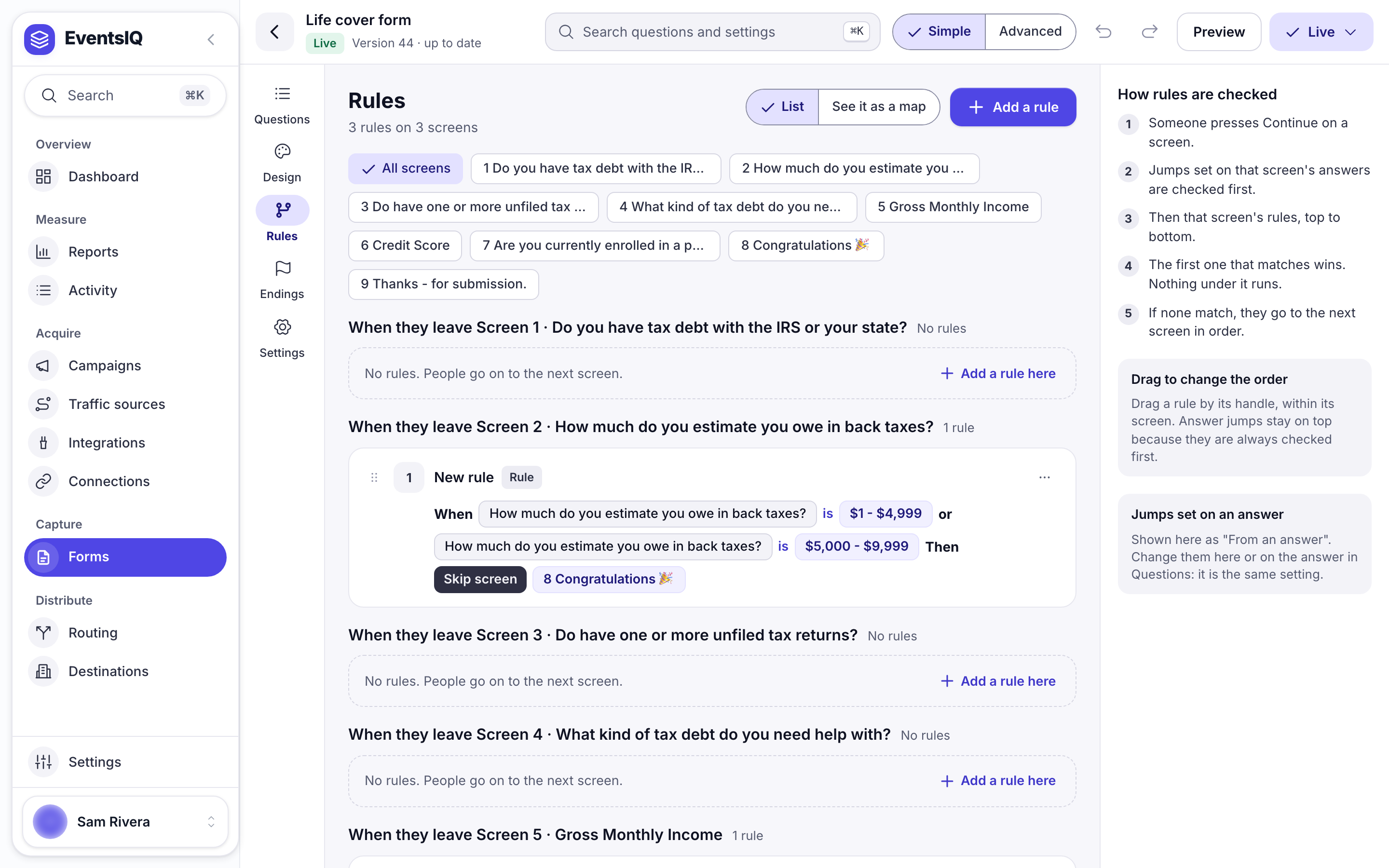
When someone presses Continue, EventsIQ checks in this order, and the first match wins:
1. **The answer they picked.** Any **Then go to** or **Not a fit** set on that answer.
2. **That screen's rules**, top to bottom.
3. **The next screen in order**, if nothing above matched.
A rule can **Go to screen**, **Skip screen**, **End with Not a fit** or **Submit now**, and it can read
any answer from any earlier screen. **See it as a map** draws the whole flow. A rule that points at a
question or screen you have since deleted is flagged, so it cannot quietly stop working.
### Endings
**Endings** is the one place for what people see when the form is over, and what happens to their
lead:
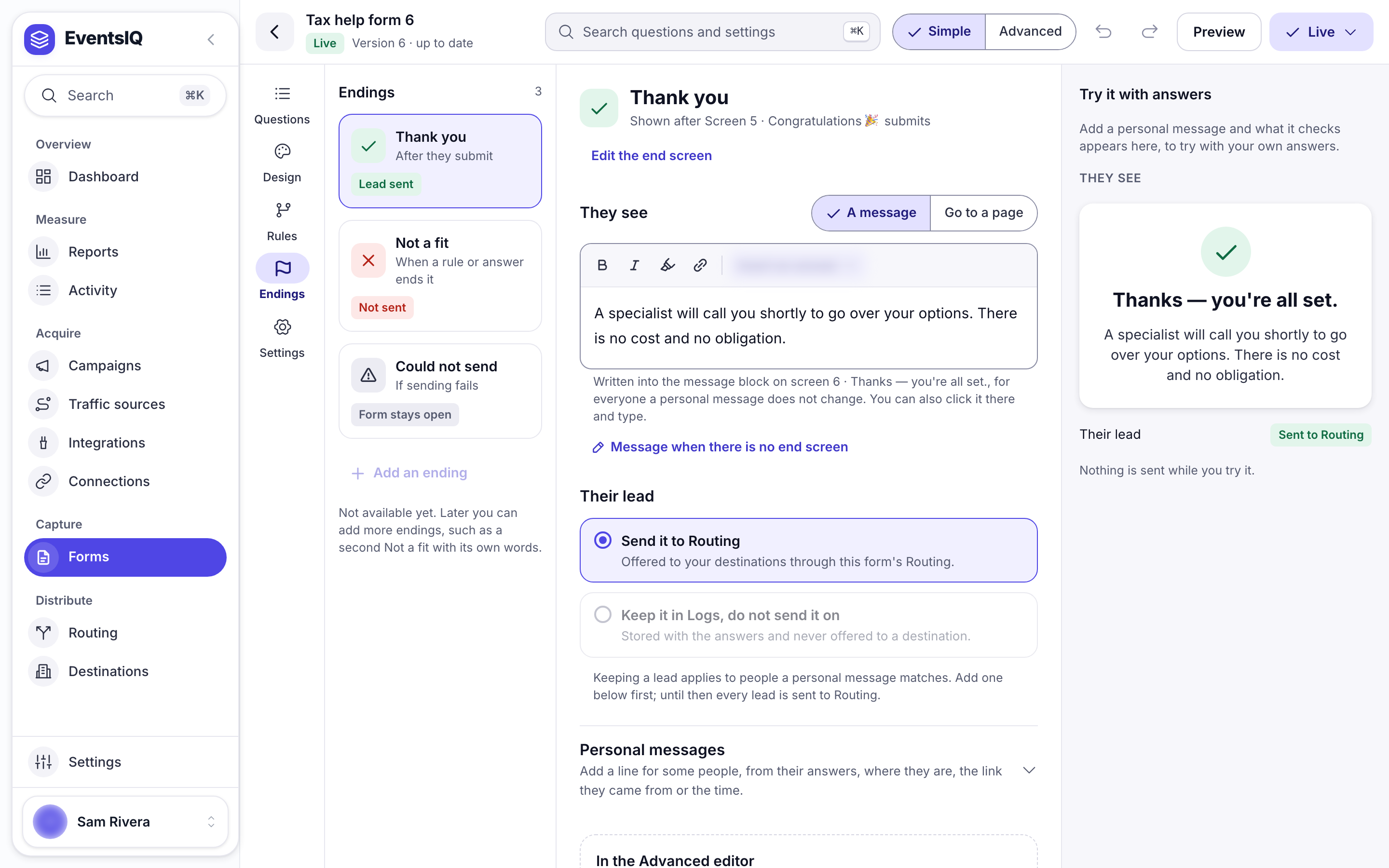
- **Thank you**: after they submit. The lead is sent, unless you choose to keep it in Logs. Show a
message, or send them to another page.
- **Not a fit**: when an answer, a rule or a button ends the form. The lead is not sent, and the
page lists every answer, rule and button that leads here.
- **Could not send**: when sending fails. The form stays open so they can try again.
- **Personal messages** show a different message to people who gave particular answers.
:::note{title="End screens and branches"}
A screen whose **After this screen** is set to **Submit, then show an ending** is where the visitor
stops. A screen with **Only reached by a rule** switched on is skipped in the normal order: only a
rule or an answer can send someone there. Both are in the screen's settings, and together they are
how you build one form with three different outcomes.
:::
### Design and Settings
**Design** sets the look of the whole form: a preset, brand colours, bands, type, shape, density,
buttons and the back link. **Choices** decides how answers are drawn (**List**, **Card** or
**Filled**, one or two per row), which is the setting that most changes how a form performs. `Card`
makes the whole answer tappable with a drawn tick instead of a small round button, and on a phone that is often the difference between a funnel that converts and one
that does not. `List` remains the default and is the better choice for long lists and for keyboard
users. To style one question, click it on the form.
**Settings** is one page with a section for each job:
- **Basics**: the form's name, a description for your team, and the Form ID.
- **Where leads go**: the routing, and the field names each destination expects.
- **Behaviour**: saving progress, going back, and step numbers.
- **Spam protection**: a **Hidden trap field** and a **Minimum time to finish**. Both are checked
on our server, so obvious bots are turned away even if they skip the form.
- **Tracking**: extra click ID names, and looking up the full location.
- **Who can submit**: the websites allowed to send leads with this form.
- **Scripts**: tracking scripts, and code that runs after a lead is sent.
:::warning{title="The Form ID is fixed once the form goes live"}
The Form ID is the key the embed script uses to fetch the form, and it ends up in your embed code
and your page source. You can change it in **Settings**, **Basics**, until the first time the form
goes live. After that it is fixed, because changing it would break every page the form is on.
:::
## Step 4: Go live
Press **Go live**. EventsIQ checks the draft and lists anything that needs a look, in plain words,
in four groups: **Questions** (rules and endings included), **Consent**, **Where leads go** and
**Put it on your page**.
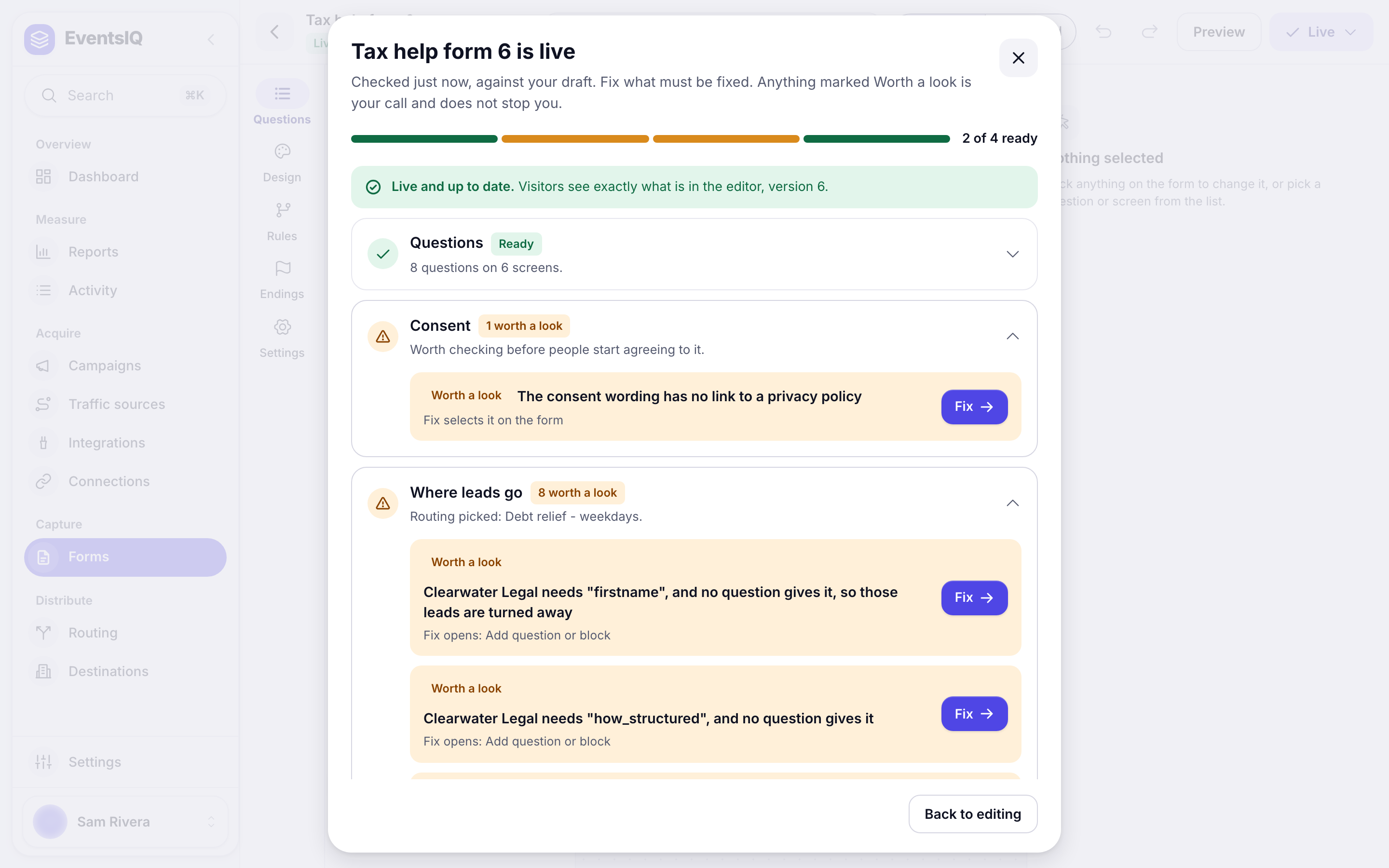
- **Must fix** stops the form going live. Press **Fix** and the editor takes you to the right place.
- **Worth a look** is your call and does not stop anything.
When nothing must be fixed, press **Go live** in the window. The form becomes version 1, visitors can
see it, and it starts taking leads. A copy is kept in **Versions**.
:::important{title="The draft and the live form are two copies"}
Everything you do in the editor changes the draft. Visitors keep seeing the live copy until you
press **Update live form**, which lists your changes first. So you can rework a live form in the
middle of the day without anyone seeing half-finished work. The Forms list flags a form whose draft
has moved ahead of what is live.
:::
Once a form is live:
- **Versions** lists every version that went live. **Restore as draft** copies one into your draft
as a single step you can undo. Nothing changes for visitors until you press **Update live form**.
- **Take offline**, in the **Live** menu, stops new leads. Nothing is deleted:
pages that show the form say it is unavailable, the leads you have stay in Logs, and it frees one
of the live forms on your plan.
Drafts are unlimited. If every live form on your plan is in use, **Go live** says so: take another
form offline or upgrade your plan.
## Step 5: Put it on your site
Pick **Put it on your page** in the **Live** menu, or search for it with ⌘K while the form is still a
draft. The window shows the code, and **Copy code** copies all of it.
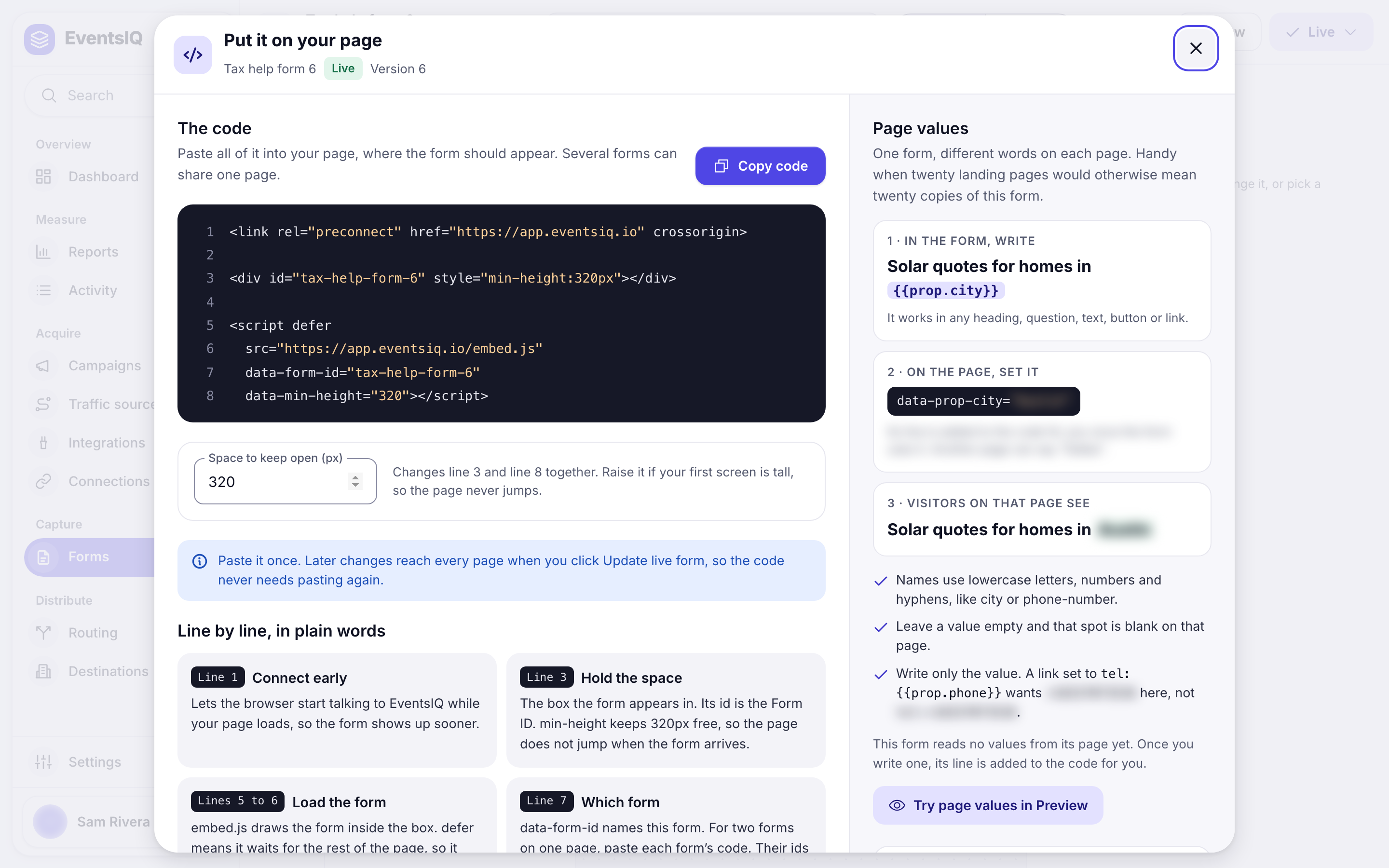
```html
```
Paste it wherever the form should appear: a WordPress page or post in a Custom HTML block, a raw
HTML template, anything that lets you put a script tag on a page. You can paste it while the form is
still a draft, but the page shows nothing until you go live. You only paste it once: later changes
reach every page when you press **Update live form**.
**Line by line, in plain words** explains what each line does, and **Page values** shows how one form
can say something different on each page. Under **Where it is used**, add the address of each page
you pasted the code into. It is a note for your team, and it warns you if that website is not allowed
to submit the form.
A few things worth knowing about the embed:
- It has **no dependencies**. No jQuery, no framework, nothing to install.
- It renders inside a **shadow root**, so your site's CSS cannot leak in and break the form, and
the form's CSS cannot leak out and break your site.
- **Several forms can share one page.** Paste the code for each, and their Form IDs keep them apart.
- The `
` is optional. If it is absent, the script creates its own container where it sits.
### For developers: the script's JavaScript names
Most sites never need these. If your page talks to the embed directly, use the EventsIQ names:
| Name | What it is |
| ----------------------------- | ---------------------------------------------------------------------------------- |
| `window.EventsIQTracking` | Set it before the script to change tracking, for example `{ cookies: false }` |
| `EventsIQTracking.resolved()` | Type it in the browser console to see the tracking values a submission would carry |
| `[EventsIQ]` | The prefix on the script's console warnings |
| `data-eiq-script` | The attribute on script tags the form adds to your page |
:::note{title="Older names still work"}
The same things used to be called `window.FormworkTracking`, `window.Formwork`, `[Formwork]` and
`data-formwork-script`. A page that still sets `window.FormworkTracking` keeps working: both names
point at the same object. The old names will be removed after 13 January 2027, so switch to the new
ones when you next edit the page.
:::
### Choosing which sites may submit
By default a live form accepts leads from any website. To lock it to your own, open **Settings** in
the editor and add them under **Who can submit**. This applies straight away: it does not wait for
**Update live form**.
:::warning{title="An empty list means anybody"}
Leaving the list empty is not a safe default: it allows leads from any website. That is deliberate,
so that a form works the moment it is embedded, but it means locking it down is something you have
to do on purpose.
:::
## Step 6: Check that it worked
Fill the form in yourself, on the real page, and then open **Activity → Lead logs**.
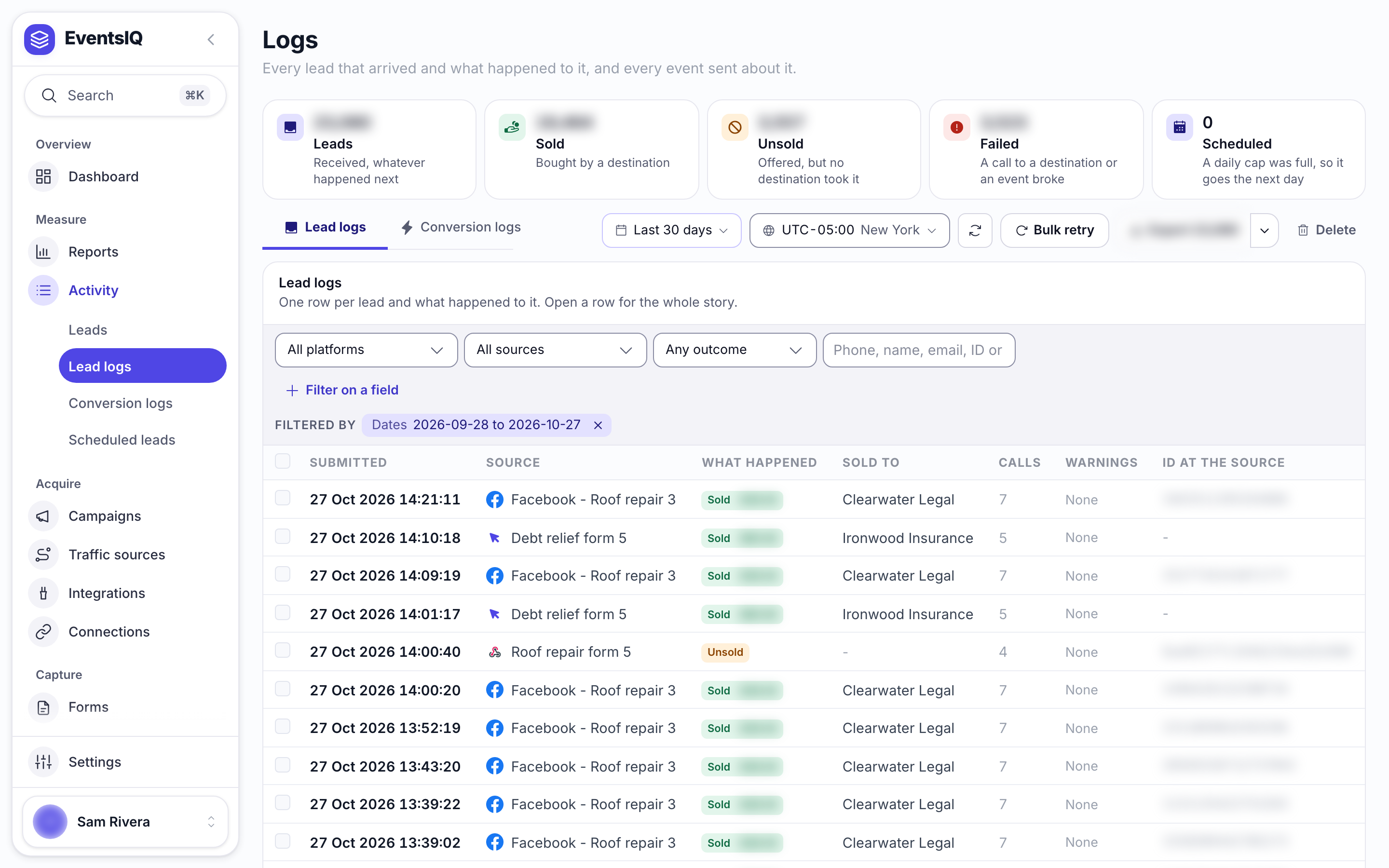
The **Lead logs** tab has one row per lead. Click it to open everything EventsIQ knows about that
lead: the cleaned-up data beside the raw data it arrived as, any field warnings, and the full
waterfall: every destination called, in order, with the response each one gave and what EventsIQ
concluded from it.
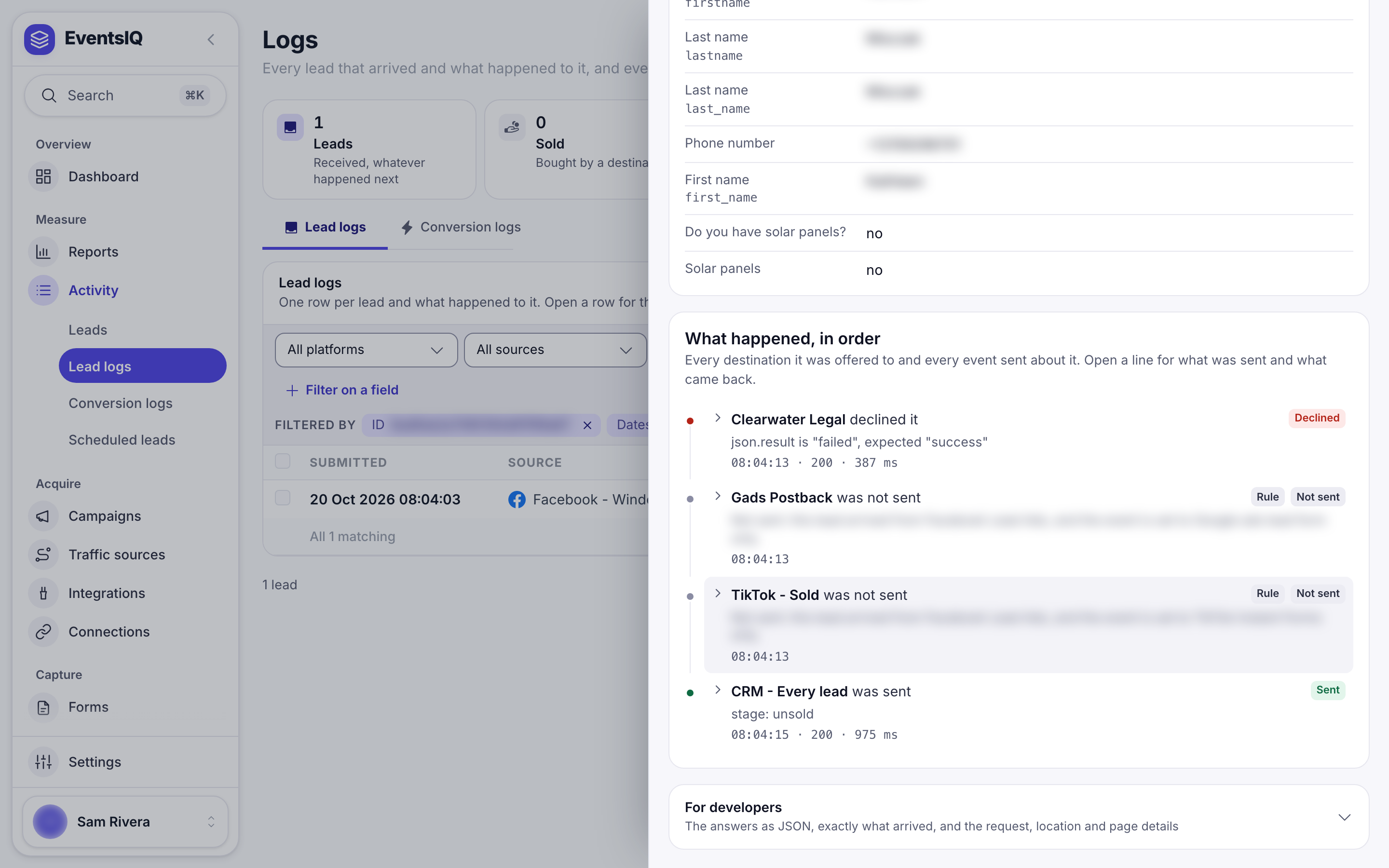
If the lead is there but the sale column says nothing was sold, the lead arrived fine and the
routing is what needs attention: start with [Destinations](https://www.eventsiq.io/docs/destinations).
If the lead is not there at all, the submission never reached EventsIQ. Check that the form is
live rather than a draft, that **Taking leads** is switched on, and that the page's website is allowed
under **Who can submit**.
## What to read next
- [Fields](https://www.eventsiq.io/docs/fields): the standard fields your questions map into.
- [Routing](https://www.eventsiq.io/docs/routing): the routing this form's leads run through.
- [Presets](https://www.eventsiq.io/docs/presets): sending different leads to different destinations.
- [Destinations](https://www.eventsiq.io/docs/destinations): who receives the lead, and what counts as a yes.